Coach your learners in Kolibri#
You can track progress of the Learners, create and assign Lessons and Quizzes to classes or learner groups from the Coach dashboard. The default view presents the list of Classes with their assigned coaches, and the number of learners enrolled in each class.
Click on a class to access the progress-tracking features and create lessons, quizzes and groups.
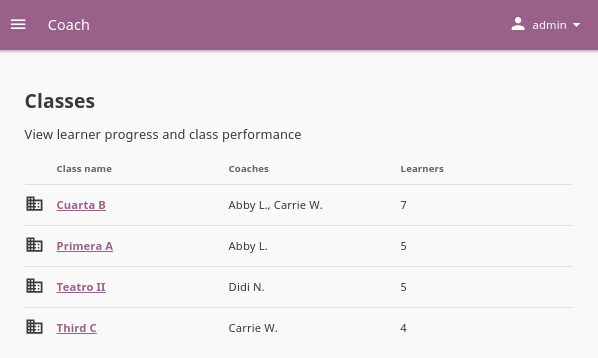
Choose one of the classes from this view to access the Kolibri coach features.#
Class home#
On the Class Home tab you can see the overview of the class activity and track progress of the learners on lessons and quizzes assigned to them.
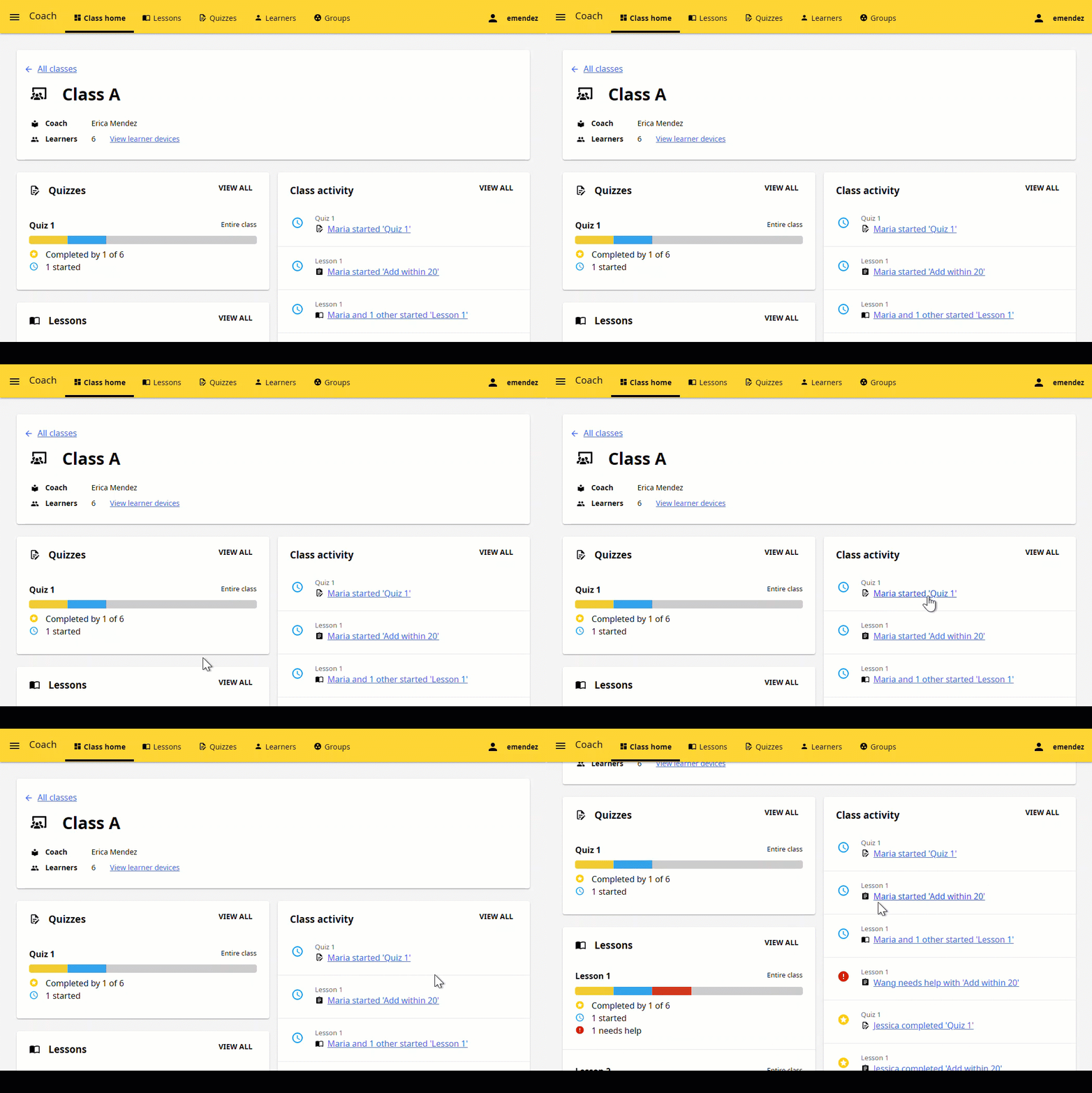
Class Home presents an overview of learner progress and activity.#
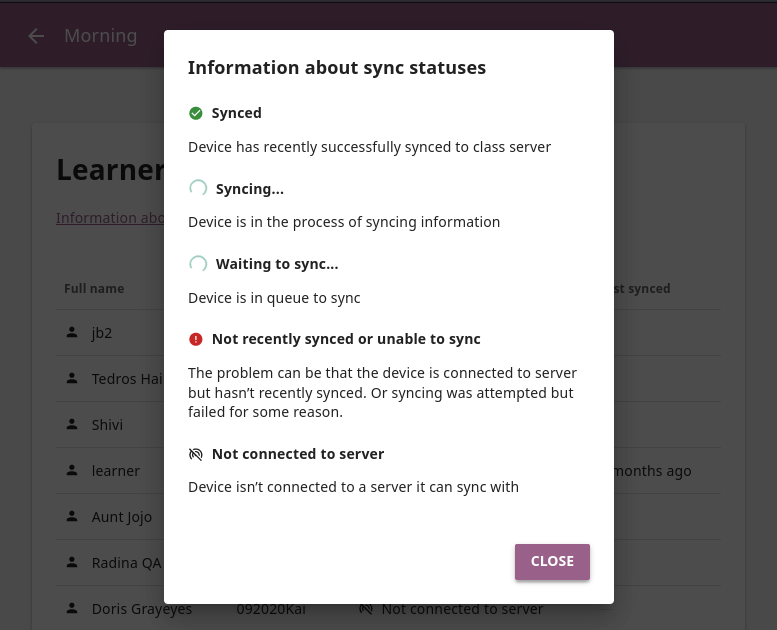
To view the currently connected learner devices and check how recently they have synced with the classroom server, follow these steps
Click the View learner devices link under the class name.
Review which learner devices are connected to the central Kolibri server, and when did they last synced the progress activity.
Tip
Click the Information about sync statuses link for more details.
Quizzes#
You can review the progress of learners on the assigned quizzes in the Quizzes block.
Progress bar will indicate how many learners have started and completed the quiz.
You can click on the progress bar to open the complete quiz data.
Click VIEW ALL to access the full list of notifications about quizzes (only the 3 most recent are displayed in the block).
Note
Quizzes were known as Exams in Kolibri versions prior to 0.12.
Lessons#
You can review the progress of learners on the assigned lessons in the Lessons block.
Progress bar will indicate how many learners have started and completed the lesson, and if they need help with some of the resources in it.
You can click on the progress bar to open the complete lesson data.
Click VIEW ALL to access the full list of notification about lessons (only the 3 most recent are displayed in the block).
Class activity#
As learners interact with lessons and quizzes, you can track their progress in the Class activity block.
When learners start or complete lessons, you will see one notification displaying the title of the lesson they started or completed, and another displaying the title of the specific resource in the lesson they interacted with. In case of quizzes, you will see only the quiz title notification.
When multiple learners are working on the same lesson or quiz, you will see a notification like Learner1 and 3 other have started…
When learners input multiple incorrect answers to a question in a lesson, the notification in the Class activity block will display that one or more learners need help with a specific resource.
You can click each notification link to review the complete progress on resource data.
Click VIEW ALL to access the full list of activity notifications (only the 5 most recent are displayed in the block).
Kolibri presents actionable reports for each lesson and quiz the class learners have been assigned, together with the possibility to observe the progress by groups and individual learners.
Coach support resources#
Kolibri Studio supports the option to set visibility for any resource added to channels as a Coach resource. These materials can be lesson plans, professional development readings, training materials, etc. only viewable by coaches and not learners. When content curators set the visibility this way, the resource will not be visible by learners while browsing Kolibri Channels, but only to admins, facility coaches, or other users assigned to coach classes.
However, coach can decide to include any of these resources in lessons or quizzes, in which case they will be visible to learners in the context of that lesson or a quiz.
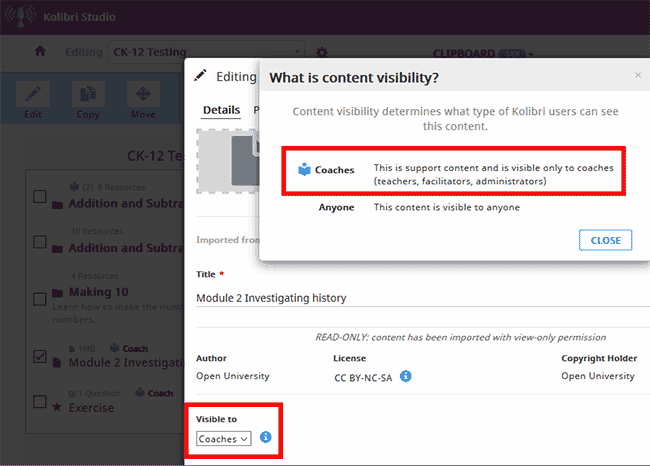
Setting the visibility of resources in Kolibri Studio.#
Coach resources and channels that contain them are marked with the (coach resource) icon in Kolibri.
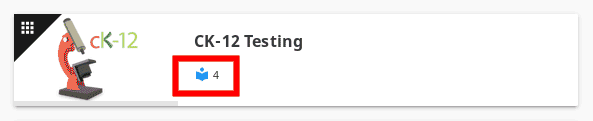
Channel with 4 support resources for coaches in Kolibri.#