Groups#
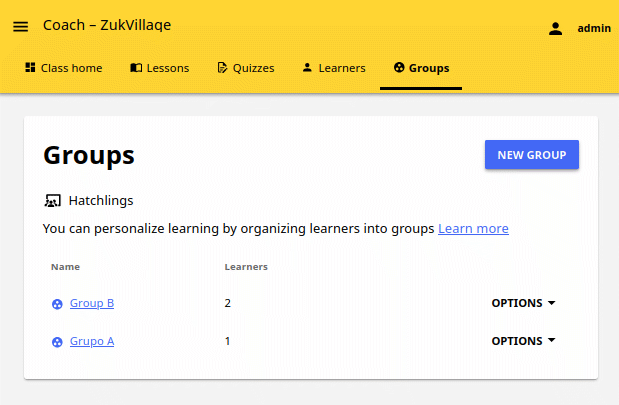
In case you need to further divide learners inside classes, for example to address the different progress needs, you can use the groups feature. Create and delete groups, as well as assign learners to them from the Groups tab in the Coach dashboard. Default view displays the list of all groups for the selected class, with the number of assigned learners for each group.
Note
To manage Kolibri groups you must sign in as coach, admin or super admin.
Manage groups#
Create a new group#
To create a new learner group, follow these steps.
Click the NEW GROUP button.
Give group a desired name.
Click SAVE to confirm, or CANCEL to exit without creating a group.
Enroll learners in a group#
Click to open the desired group in the Groups tab.
Click the ENROLL LEARNERS button.
List in this view contains all the learners currently not enrolled in the selected group.
You can search for a specific learner by name.
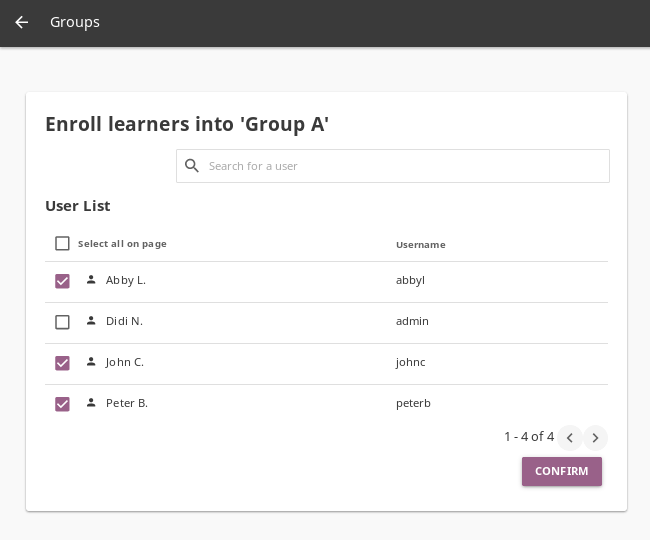
Use checkboxes to select all the learners in the list, or the search field for specific learners you want to enroll in the group.
Click CONFIRM to finish enrolling the selected learners and return to the group page.
Remove learners from group#
Click to activate the REMOVE checkbox for the chosen learner.
Click REMOVE to confirm, or CANCEL to exit without removing the learner.
Rename group#
To rename group, follow these steps.
Click the (options) button and select Rename group.
Input the new name for the group in the confirmation window.
Click the SAVE button to proceed, or CANCEL to exit without renaming the group.
Delete group#
To delete a group, follow these steps.
Click the (options) button and select Delete group.
Click the DELETE button in the confirmation window to proceed, or CANCEL to exit without deleting the group.